Microsoft Word has a built-in Dictate feature that lets you speak instead of type. But is it the best option? This guide shows you how to use voice typing in Word, and introduces a more powerful alternative that works not just in Word, but everywhere on Windows.
Method 1: Microsoft Word's Built-in Dictate
Using Word's Dictate Feature
Microsoft Word includes a Dictate button in the Home ribbon. This feature uses Microsoft's cloud-based speech recognition to transcribe your voice.
- Open Microsoft Word and create or open a document
- Click the Home tab in the ribbon
- Click the Dictate button (microphone icon) in the Voice group
- Wait for the microphone indicator to appear
- Start speaking - your words will appear as text
- Click the Dictate button again to stop
You can also press Alt+` (backtick) as a keyboard shortcut to toggle dictation.
Limitations of Word's Dictate
- Only works inside Microsoft Word - can't use it in other applications
- Accuracy varies, especially with technical terms and names
- No custom vocabulary to teach it specialized words
- No text replacement or auto-correction features
- No AI assistance for writing or editing
- Requires Microsoft 365 subscription for full features
Method 2: WhisperTyping (Recommended)
Using WhisperTyping in Word
WhisperTyping is a Windows application that uses OpenAI's Whisper model for superior speech recognition. It works in Word and every other Windows application.
- Download and install WhisperTyping (free)
- Open Microsoft Word and place your cursor where you want to type
- Press your hotkey (CapsLock by default) to start recording
- Speak naturally - WhisperTyping listens in the background
- Press the hotkey again to transcribe
- Your text appears at the cursor position
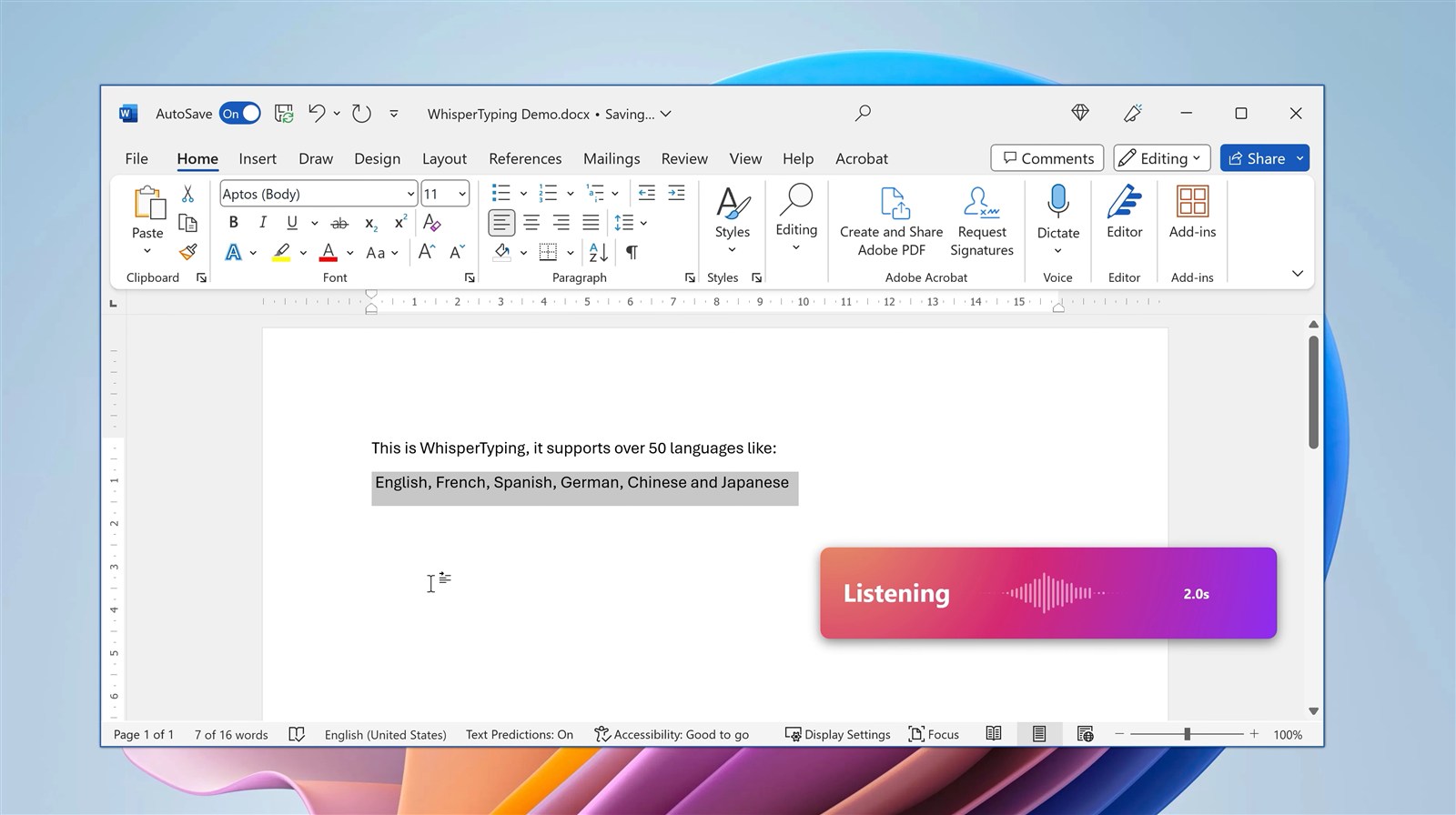
Why WhisperTyping is Better
- Works everywhere - Word, Outlook, Chrome, Slack, any Windows app
- Better accuracy - OpenAI's Whisper model outperforms Microsoft's speech recognition
- Custom vocabulary - Add names, technical terms, and jargon
- Text replacements - Auto-expand abbreviations and fix common mistakes
- AI modes - Write, rewrite, answer questions, and more
- 50+ languages - Switch languages without changing settings
- Free tier available - Generous free minutes at no cost
Side-by-Side Comparison
| Feature | Word Dictate | WhisperTyping |
|---|---|---|
| Works in Word | ||
| Works in Other Apps | ||
| Speech Recognition | Microsoft Azure | OpenAI Whisper (more accurate) |
| Custom Vocabulary | ||
| Text Replacements | ||
| AI Writing Assistance | ||
| Languages | ~10 | 50+ |
| Free Option | Limited (needs M365) | 20 min/month |
When to Use Each Option
Use Word Dictate If...
- You only ever dictate in Microsoft Word
- You already have Microsoft 365
- You don't need custom vocabulary
- Basic accuracy is acceptable
Use WhisperTyping If...
- You want to dictate in multiple applications
- You need higher accuracy
- You use technical terms or names
- You want AI-powered writing assistance
- You work in multiple languages
Tips for Better Voice Typing in Word
Speak Punctuation
Both Word Dictate and WhisperTyping support spoken punctuation. Say "period", "comma", "question mark", or "new paragraph" to add formatting as you speak.
Use a Quality Microphone
A good microphone makes a significant difference in accuracy. A headset or dedicated USB microphone will outperform your laptop's built-in mic.
Speak in Complete Thoughts
Rather than pausing every few words, try speaking in complete sentences. Speech recognition works better with natural speech patterns and context.
Ready for Better Voice Typing?
WhisperTyping works seamlessly with Microsoft Word and every other Windows application. Download free and experience the difference professional-grade speech recognition makes.