AI Modes
WhisperTyping includes several AI modes that enhance your dictation with AI processing. These modes are triggered by saying specific phrases at the start of your dictation. All AI modes can be individually enabled or disabled in Settings → AI Modes.
You can also create your own modes (or edit the built-in ones) — set the prompt, trigger words, context, output, and which AI model to use, including your own provider key (OpenAI, Anthropic, Google or Groq).
Overview
| Mode | Trigger Phrase | Function | AI | Clipboard | Selection |
|---|---|---|---|---|---|
| Default | (none) | Standard transcription | No | No | No |
| Answer | "Answer..." | Answer any question | Yes | Keyword | Keyword |
| Write | "Write..." | Generate text from prompt | Yes | Keyword | Keyword |
| Rewrite | "Rewrite..." | Rewrite selected text | Yes | Keyword | Yes |
| Reply | "Reply..." | Generate reply to clipboard | Yes | Yes | No |
| Run Command | "Open..." | Execute voice commands | Yes | Keyword | Keyword |
Keyword = Access is triggered when you mention that word in your prompt (e.g., "Answer what's in my clipboard" or "Answer based on selection").
Write Mode
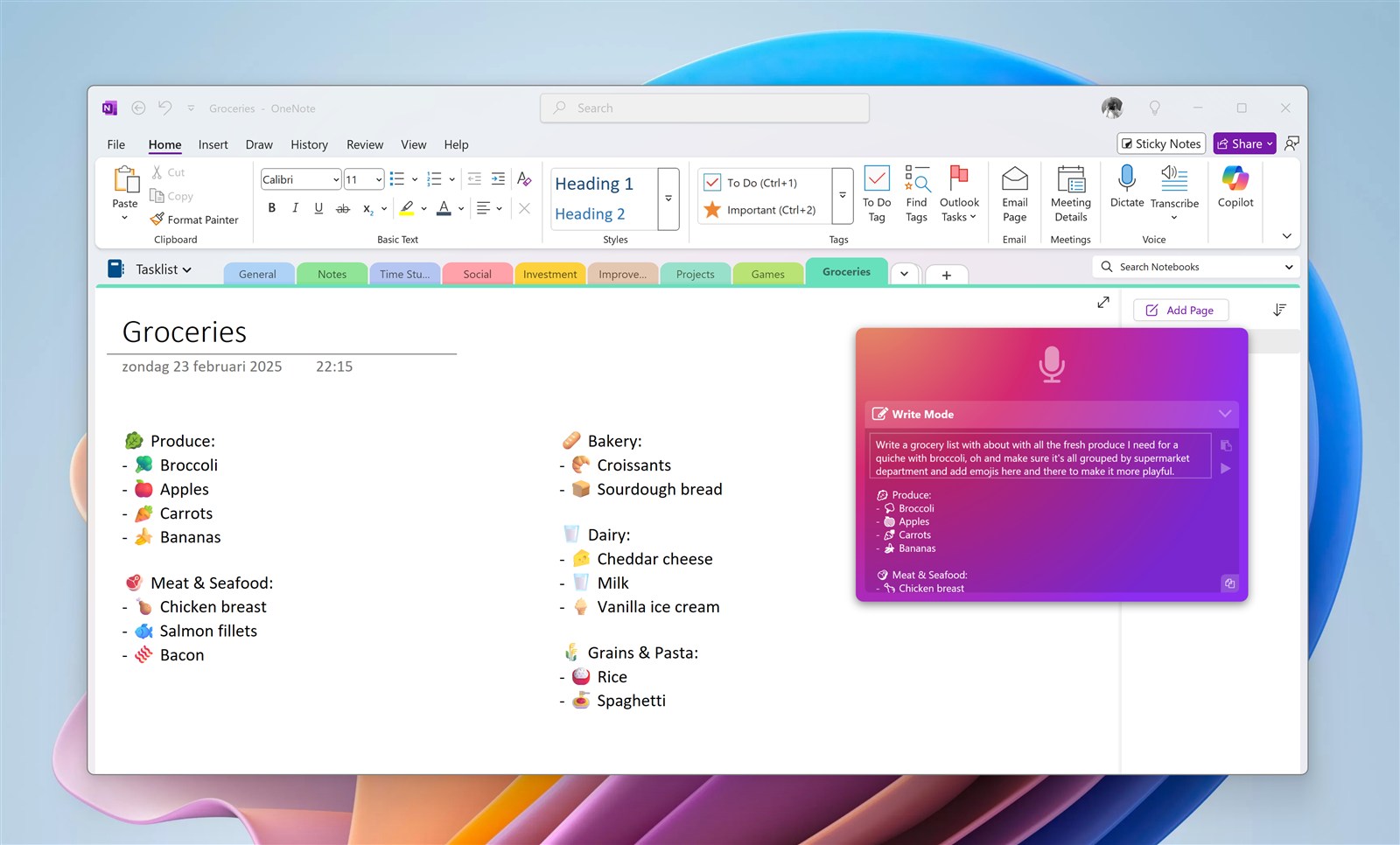
Write Mode "Write..."
Generates polished text from your spoken instructions. The text is typed directly where your cursor is. To include clipboard or selection content as context, mention "clipboard" or "selection" in your prompt.
Output: A professionally written email ready to send
Output: A warm thank you message
You say: "Write a summary email based on my clipboard"
Output: A formatted email summarizing the meeting notes
Rewrite Mode
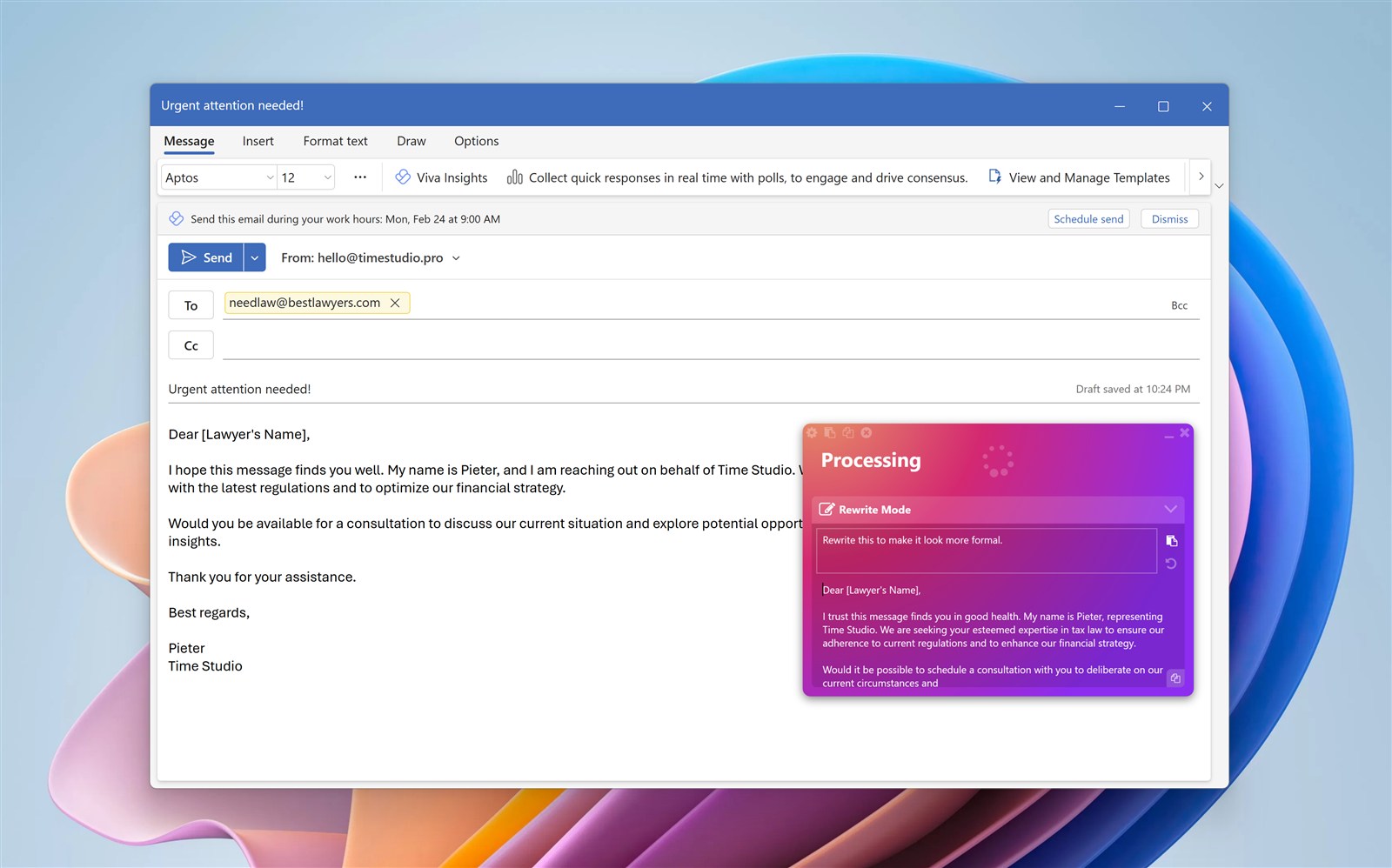
Rewrite Mode "Rewrite..."
Rewrites your selected text based on your instructions. Simply select text before activating WhisperTyping—the selection is automatically included. To use clipboard content instead, mention "clipboard" in your prompt.
You say: "Rewrite this more formally"
Output: "The meeting has been scheduled for 3:00 PM tomorrow."
You say: "Rewrite to be shorter"
Output: A condensed version of the text
You say: "Rewrite for a non-technical audience"
Output: The same content in plain language
Answer Mode
Answer Mode "Answer..."
Ask any question and get an AI-powered answer. By default, Answer Mode works like a general-purpose assistant. To include clipboard or selection content, you must mention the word "clipboard" or "selection" in your question.
Output: The Eiffel Tower is 330 meters (1,083 feet) tall.
Output: 37.5
You say: "Answer what does this clipboard error mean" (mention "clipboard" to include it)
Output: An explanation of the error and how to fix it
You say: "Answer what does this selection do" (mention "selection" to include it)
Output: A clear explanation of the selected code
Reply Mode
Reply Mode "Reply..."
Generates a reply to a message. Your clipboard is always automatically included—just copy the message you want to reply to before activating. The reply is typed directly where your cursor is.
You say: "Reply that the project is on track and will be done next week"
Output: A professional reply addressing the sender's question
You say: "Reply yes sounds good let's do it"
Output: A friendly confirmation message
You say: "Reply apologize and offer a refund"
Output: A polite customer service response
Run Command Mode
Run Command Mode "Open..."
Opens applications, websites, or performs complex searches using voice commands. Say "Open" followed by what you want to launch or search for. The AI constructs the appropriate URL or command, enabling powerful one-shot searches.
Result: Opens YouTube in your default browser
Result: Launches the Windows Calculator
Result: Opens Airbnb with the search pre-filled for Barcelona, those dates, and 3 nights
Result: Opens Google Flights with the route and dates pre-configured
Result: Opens Amazon with the search query ready
Result: Opens Google Maps with a local restaurant search
Custom Modes
You can create your own AI modes — and fully edit the built-in ones — in Settings → AI Modes. Click Add Mode to create one, or Edit on any mode to change it.
What you can configure
- Name and Enabled — what the mode is called, and whether it's active.
- Trigger words — the word(s) you say at the start of your dictation to activate the mode (e.g. "translate", "summarize"). Say the trigger, then your instruction.
- Model — the included Qwen 3.6 model (free and fast), or any model from a provider you've connected (see below).
- Prompt — the instructions sent to the AI. Use the
[CONTEXT]token to mark where your clipboard or selected text is inserted. If a mode includes context but you don't place the token, it's added at the end automatically. - Include context — for Clipboard and Selection, choose Never, Always, or When speech contains a specific word.
- Output — Type it (virtual keyboard), Show in the WhisperTyping window, or Run as a command.
Bring your own AI provider
By default, modes use WhisperTyping's included Qwen 3.6 model, with responses capped at around 1,000 words. To use other models, add your own API key under Settings → AI Modes → AI Providers:
| Provider | Example models |
|---|---|
| OpenAI | GPT-5.4, GPT-5.4 mini, GPT-5.4 nano, GPT-4.1 |
| Anthropic | Claude Opus 4.8, Claude Sonnet 4.6, Claude Haiku 4.5 |
| Gemini 3 Pro, Gemini 3 Flash | |
| Groq | Llama 3.3 70B, Qwen3 32B |
Each provider page has a "get a key" link. Paste your key, click Test, then Save. Your key is stored encrypted on your PC, used to call the provider directly (their billing applies, and the ~1,000-word cap no longer applies), and is never uploaded to WhisperTyping. You can also enter a custom model id for any model a provider offers.
Run Command: how it works
When a mode's Output is set to Run as a command, the AI turns your dictation into a Windows command and runs it. The command has two parts:
- command — what to run. This can be a URL (opens in your default browser) or an executable — either an absolute path like
C:\Tools\app.exeor just a program name likechrome.exeornotepad.exe. - arguments — optional. The command-line arguments to pass to that command (left blank for a URL).
A few examples:
| You say | command | arguments |
|---|---|---|
| "Open YouTube" | https://youtube.com | (blank) |
| "Search Google for noise-cancelling headphones" | https://www.google.com/search?q=noise-cancelling+headphones | (blank) |
| "Open the calculator" | calc.exe | (blank) |
| "Open Notepad" | notepad.exe | (blank) |
| "Open the WhisperTyping site in Chrome" | chrome.exe | https://whispertyping.com |
| "Open my downloads folder" | explorer.exe | %USERPROFILE%\Downloads |
| "Run my backup tool" | C:\Tools\Backup\backup.exe | --full |
| "Open sound settings" | control | mmsys.cpl |
Building your own Run Command mode
If you create your own Run Command mode, your prompt must instruct the AI to reply with only a JSON object containing those two properties — command and arguments. Nothing else, no explanation. It should look exactly like this:
{
  "command": "https://youtube.com",
  "arguments": ""
}
A few more examples of the JSON the AI should return:
// open the calculator
{ "command": "calc.exe", "arguments": "" }

// open the WhisperTyping site in Chrome
{ "command": "chrome.exe", "arguments": "https://whispertyping.com" }

// open the downloads folder
{ "command": "explorer.exe", "arguments": "%USERPROFILE%\\Downloads" }

// run a custom program by full path, with arguments
{ "command": "C:\\Tools\\Backup\\backup.exe", "arguments": "--full" }
For a website, put the complete URL (including any query string) in command and leave arguments empty.
Because the result is executed on your machine, only use Run Command with prompts you trust.
Need help with AI Modes?
Have questions about AI Modes? Send us a message and we'll help you out.