Using voice typing with Claude Code transforms how you work. But there are tips and tricks that make the experience even better. Here's what we've learned from daily use.
1. Tell Claude You Use Voice
This is the single most impactful tip. Add a note to your project's CLAUDE.md file that your input comes via voice transcription:
"User input comes via voice dictation. Expect possible transcription errors like homophones, missing punctuation, or misheard words. Interpret intent rather than taking input literally."
Once Claude knows to expect voice input, it stops tripping over minor transcription errors. You can speak naturally without reviewing your transcription before sending. Just talk, double-tap, and go.
2. Be Descriptive, Not Precise
When dictating to Claude Code, use more words rather than fewer. You're speaking, not typing, so being verbose is free. Instead of trying to be concise and risking ambiguity, explain what you want in plain language.
Don't try to dictate exact code syntax. Say "add a function that takes a user ID and returns their profile from the database" rather than trying to spell out the function signature. Claude Code understands intent better than dictated code.
3. Use the VS Code Extension
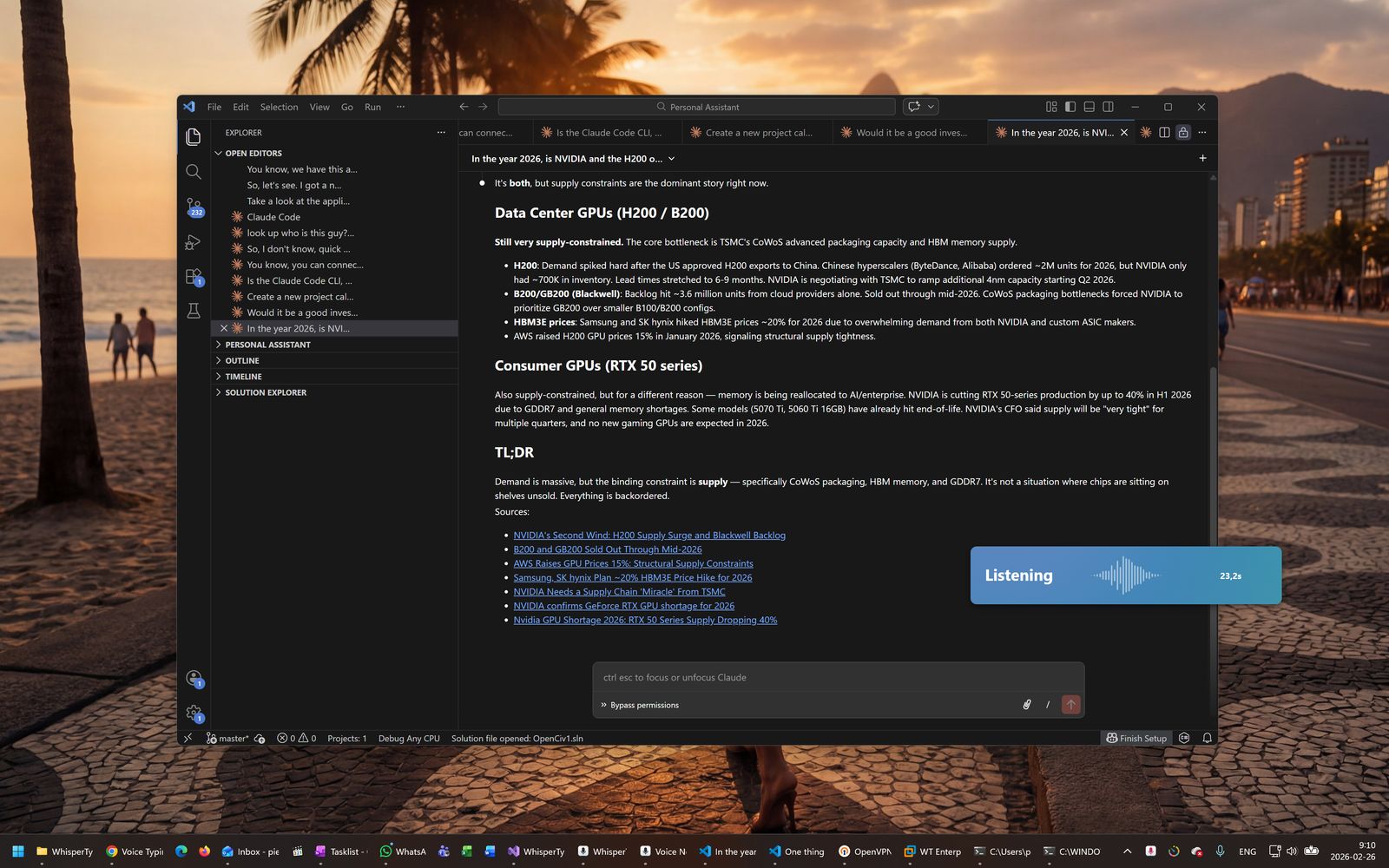
Claude Code works both as a standalone CLI and as a VS Code extension. For voice dictation, we recommend the extension. The CLI's text input can occasionally freeze or lag when handling longer prompts. The VS Code extension has a smoother, more responsive input experience.
The trade-off: not every Claude Code feature is available in the extension yet. But for day-to-day voice-driven coding, the more reliable text input makes it worth it.
4. Mouse Activation + Double-Tap
The most efficient voice typing workflow combines mouse activation with double-tap to send. You control everything with one hand on your mouse:
- Click your middle mouse button (or a mapped side button) to start recording
- Speak your prompt
- Double-click to stop, transcribe, and press Enter
Your prompt is transcribed and sent to Claude Code in one motion. No keyboard needed. This works especially well with mice like the Logitech MX Master that have programmable side buttons.
5. Add Custom Words to the Vocabulary
WhisperTyping lets you add custom words to improve transcription accuracy. Common frameworks like React or FastAPI are recognized out of the box, but add words that are unique to your world:
- Your project name and internal codenames
- Names of colleagues and collaborators
- Company-specific terms, acronyms, and jargon
- Niche libraries or tools that speech recognition might not know
Go to Settings, then Vocabulary to add terms. Focus on words that are unique to you. The more standard a term is, the less likely you need to add it.
6. Let Screen OCR Do the Work
WhisperTyping reads your screen using OCR. When you're looking at code, it sees function names, error messages, and variables on screen and uses them to improve transcription accuracy. This means you don't need to add every variable name to your vocabulary - if it's visible on screen, WhisperTyping will transcribe it correctly.
This is especially useful when referencing specific error messages or function names in your prompts to Claude Code.
7. Choose the Right Hotkey
Pick a hotkey that's easy to reach without looking. Popular choices:
- Caps Lock: Excellent choice. Your left hand rests on it naturally, keeping your right hand free on the mouse. WhisperTyping remaps it so you can still toggle Caps Lock with Shift+Caps Lock.
- Middle mouse button: Best for fully one-handed workflow
- F13-F24: Great if your keyboard has extra function keys or you remap with AutoHotkey
- Scroll Lock or Pause: Rarely used keys that won't conflict with other shortcuts
Avoid hotkeys that conflict with your IDE or Claude Code shortcuts.
8. Stop Reviewing Your Transcription
This is a mindset shift. If you've added the voice note to CLAUDE.md, you don't need to read your transcription before sending. Just speak, double-tap, and move on. Claude will figure out what you meant, even with minor transcription errors.
The speed gain from not reviewing is significant. You go from "speak, read, fix, send" to just "speak, send." That's the whole point of voice typing: it should feel faster than typing, not the same speed with extra steps.
Frequently Asked Questions
What if Claude Code misunderstands my dictation?
If Claude misinterprets your intent, just speak a correction naturally: "No, I meant the user profile page, not the settings page." Claude Code handles conversational corrections well. You don't need to re-dictate the entire prompt.
Should I use push-to-talk or toggle mode?
Both work well with Claude Code. Push-to-talk (hold the hotkey while speaking) gives you precise control. Toggle mode (tap to start, tap to stop) is better for longer prompts where you want both hands free. Try both and see which feels natural.
How do I dictate code-specific terms like variable names?
Add them to WhisperTyping's custom vocabulary. But you can also just describe what you want in plain English: "create a variable called user count" works just as well as trying to dictate "const userCount". Claude Code generates the actual code.
Does voice typing work with Claude Code's plan mode?
Yes. WhisperTyping types wherever your cursor is, including Claude Code's plan mode prompt. You can dictate your requirements and approval responses the same way you dictate regular prompts.