Claude Code is a powerful coding agent, but getting the most out of it on Windows requires the right setup. Here's the configuration we use daily for a smooth, productive workflow.
CLI vs. VS Code Extension
Claude Code comes in two flavors: the standalone CLI (runs in your terminal) and the VS Code extension. Both are capable, but they have different strengths:
- VS Code extension: Smoother text input, integrated file navigation, easier to review changes inline. Better for voice dictation because the input field doesn't lag.
- CLI: Full feature set, more autonomy options, works from any terminal. Some features are CLI-only.
Our recommendation: use the VS Code extension for day-to-day coding, and switch to the CLI when you need its advanced features. The extension covers 90% of use cases with a better input experience.
Add Voice Dictation
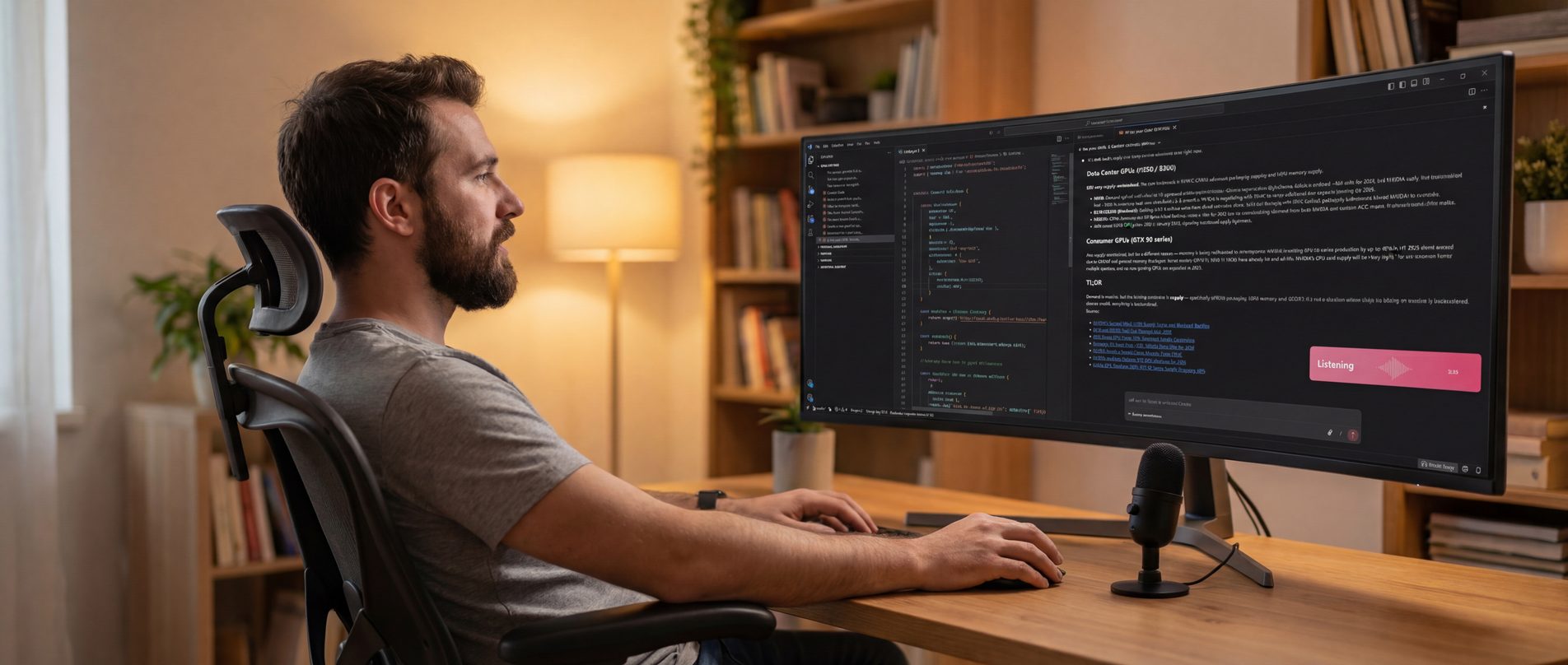
Typing detailed prompts is the bottleneck in any AI coding workflow. WhisperTyping eliminates it: press a hotkey, speak your prompt, and it appears in Claude Code. Speaking is 4x faster than typing, and with a median transcription time of 370 milliseconds, there's almost no delay.
Key features for Claude Code users:
- Double-tap to send: Transcribe and press Enter in one motion
- Mouse activation: Control dictation from your mouse for one-handed workflow
- Custom vocabulary: Add project names, colleague names, and niche terms for accurate transcription
- Screen OCR: Reads code on your screen for better accuracy on function names and variables
Configure CLAUDE.md
Every project should have a CLAUDE.md file at the root. This is Claude Code's project-level configuration file. Include:
- Project overview: What the project does, key technologies, architecture decisions
- Conventions: Naming patterns, file organization, coding style preferences
- Voice input note: If you use voice dictation, tell Claude to expect transcription errors and interpret intent
- Build/test commands: How to build, run tests, and start the dev server
A good CLAUDE.md saves you from repeating the same instructions in every conversation.
Hotkey and Mouse Setup
For voice dictation with Claude Code, you want a hotkey that's always accessible without reaching:
- Caps Lock: Your left hand rests on it naturally, keeping your right hand free on the mouse. WhisperTyping remaps it so Shift+Caps Lock still toggles Caps Lock.
- Mouse button: Middle mouse button or mapped DPI button for fully one-handed workflow
- Keyboard alternative: F13, Scroll Lock, or Pause if you prefer a less prominent key
- Enable double-tap: In WhisperTyping settings, make sure "Double-tap hotkey to add Enter" is on
With mouse activation + double-tap, you can dictate and send prompts to Claude Code without touching your keyboard. See the mouse activation guide for detailed setup instructions.
Terminal Configuration
If you use Claude Code's CLI, a good terminal setup matters:
- Windows Terminal: Use it instead of the old cmd.exe. Better rendering, tabs, and customization.
- Font: Use a font with good monospace characters. Cascadia Code or JetBrains Mono work well.
- Buffer size: Increase the scroll buffer so you don't lose Claude's output when it generates a lot of code.
Daily Workflow
Here's the workflow that works best:
- Open your project in VS Code with the Claude Code extension
- Make sure WhisperTyping is running (it starts with Windows if configured)
- Click into Claude Code's chat panel
- Click your mouse button to start dictating, speak your prompt, double-click to send
- While Claude works, review its changes, test your app, or think about the next step
- When ready, dictate your next prompt. WhisperTyping is always listening for your hotkey.
The key insight: your hotkey is system-wide. You can dictate while in any window, not just Claude Code. See a bug while testing in the browser? Hit your hotkey and describe it. By the time you switch back, your prompt is ready.
Frequently Asked Questions
How do I install Claude Code on Windows?
Install via npm: npm install -g @anthropic-ai/claude-code. For the VS Code extension, search "Claude Code" in the VS Code extension marketplace and install it.
What's the best way to get started with voice dictation for Claude Code?
Install WhisperTyping, set your hotkey to the middle mouse button, and add the voice input note to your CLAUDE.md. Then just start speaking your prompts instead of typing them. It feels natural within minutes.
Does Claude Code work better with voice than typing?
Claude Code works the same way regardless of how you input text. But voice changes how you work: you tend to give more context, explain things more naturally, and iterate faster because speaking is 4x faster than typing. More context means better results from Claude.
Can I use Claude Code and WhisperTyping for free?
WhisperTyping has a free tier with basic features. Claude Code requires an Anthropic API key or a Claude subscription. The combination works on any plan.