Middle Mouse Button
Use the scroll wheel click to toggle recording. Works with any mouse.
DPI Button Mapping
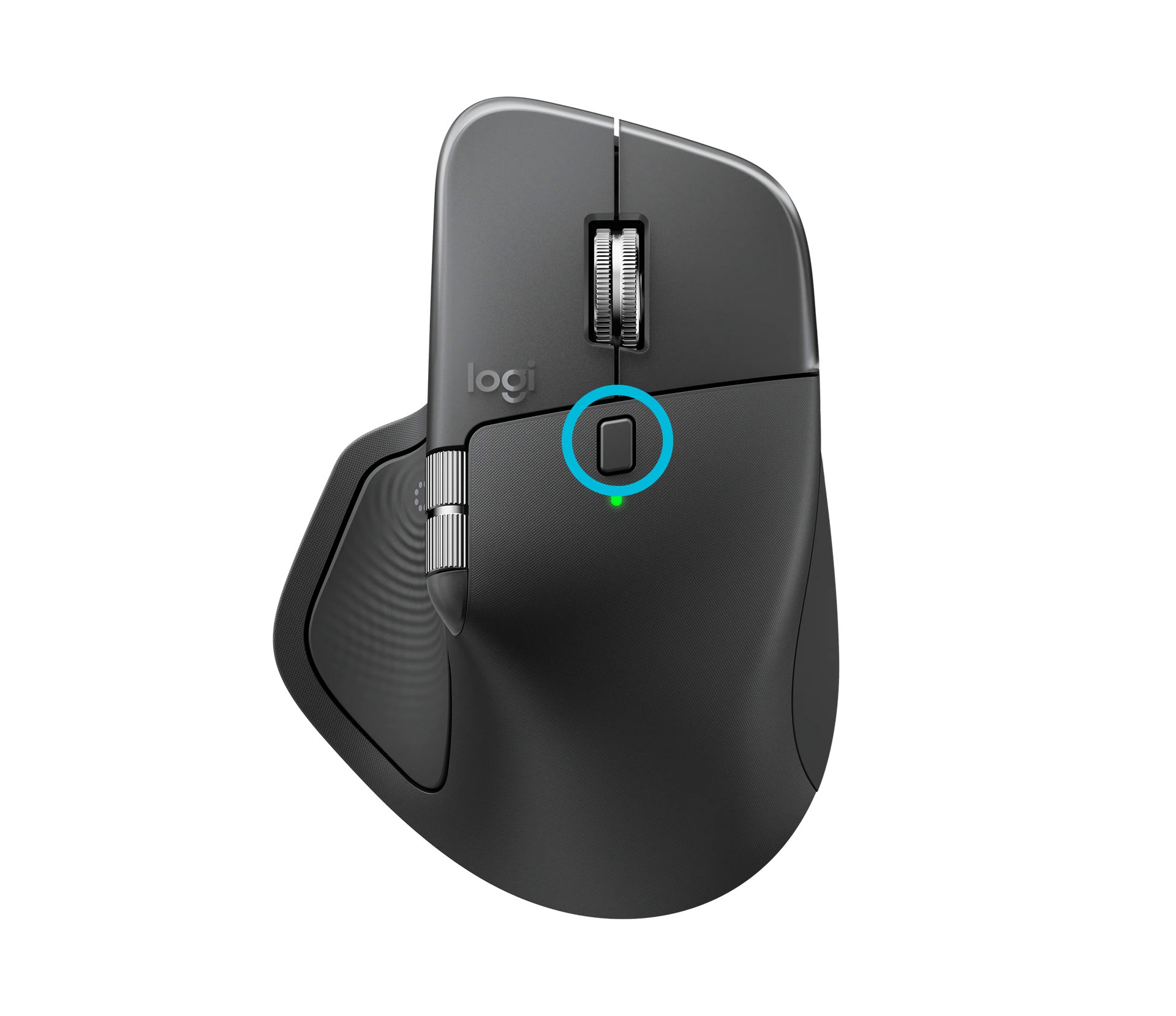
Map your DPI or side button on premium mice like Logitech MX Master.
Middle Mouse Button Activation
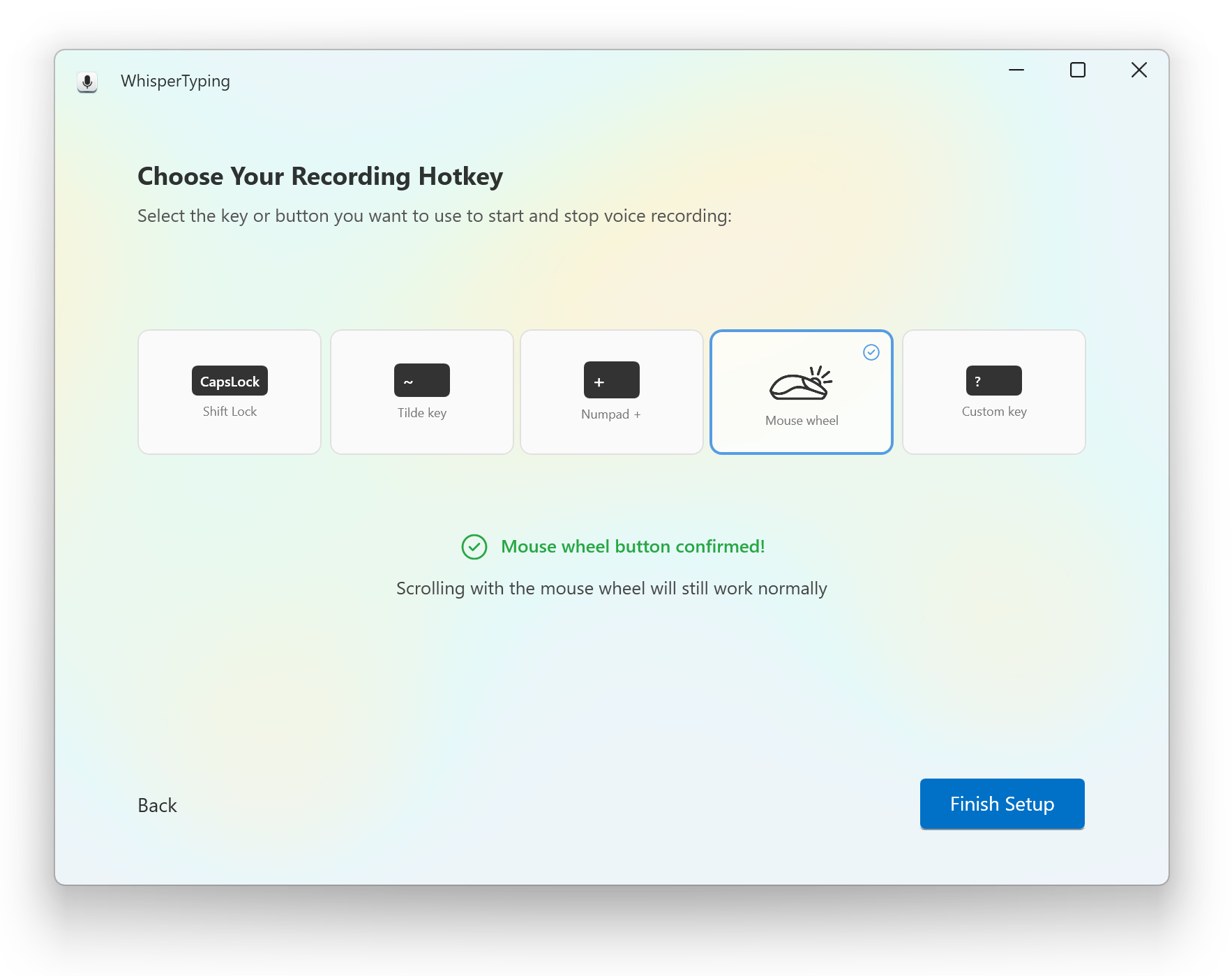
The simplest way to activate voice typing with your mouse is using the middle mouse button (the scroll wheel click). This is built into WhisperTyping and works with any mouse.
How to Enable
You can enable mouse wheel activation in two places:
- During setup: Select "Mouse wheel" in the welcome wizard
- In settings: Go to Settings → Hotkeys and enable "Mouse wheel button"
Once enabled, click the middle mouse button to start recording, and click again to stop and transcribe. You can also hold the button to record and release to transcribe.
What About Regular Mouse Functions?
Don't worry—scrolling still works normally. WhisperTyping only captures the click of the middle button, not the scroll wheel rotation. You can still:
- Scroll pages normally with the wheel
- Open links in new browser tabs (Ctrl+click or right-click → Open in new tab)
- Use auto-scroll in browsers (click and hold middle button while moving)
Alternative: Map Your DPI Button
Premium mice from brands like Logitech, Razer, and others have extra buttons—including a DPI button—that can be remapped using their companion software. This is perfect if you want to keep your middle mouse button for its original functions.
How It Works
- In WhisperTyping, set your hotkey to something like F13 or another rarely-used key
- Open your mouse's companion software (Logi Options+, Razer Synapse, etc.)
- Map your DPI button or any side button to that same key
- Now pressing the button on your mouse triggers WhisperTyping
Mouse Brands with Customizable Buttons
The Logitech MX Master series is particularly popular among WhisperTyping users. It has a thumb button and gesture button that can be mapped to any keyboard shortcut.
Control Your Computer With One Hand
Here's where mouse activation becomes truly powerful: combine it with double-tap to send Enter, and you can dictate and send messages without ever touching your keyboard.
One-Handed Workflow
- Click the middle mouse button to start recording
- Speak what you want to type
- While speaking, move your cursor to the destination text field
- Double-click the middle mouse button to stop, transcribe, and press Enter
The text appears and sends—all with one hand on your mouse.
This workflow is perfect for:
- Chat applications: Slack, Teams, Discord, WhatsApp
- AI assistants: ChatGPT, Claude, Gemini—dictate your prompt and send it
- Email replies: Quick responses without touching the keyboard
- Form filling: Move between fields while dictating
Enable Double-Tap to Send Enter
This feature is enabled by default. If it's not working, check Settings → Advanced and make sure "Double-tap hotkey to add Enter" is enabled.
Related
- Settings Reference – Configure hotkeys and activation methods
- Double-Tap to Add Enter – Send messages automatically
- Tips for Better Accuracy – Get the most out of voice dictation