Settings
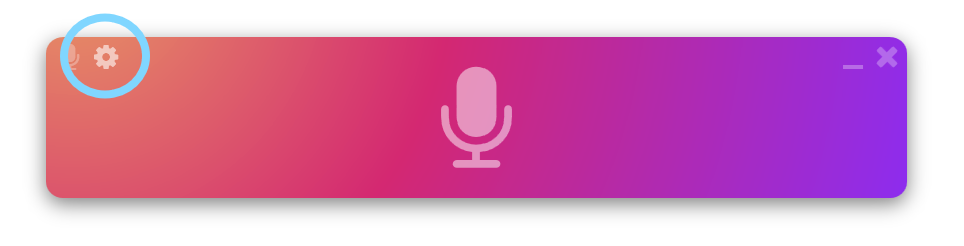
Configure WhisperTyping to work exactly how you want it. Click on the gear icon in the main window to open the settings.
General
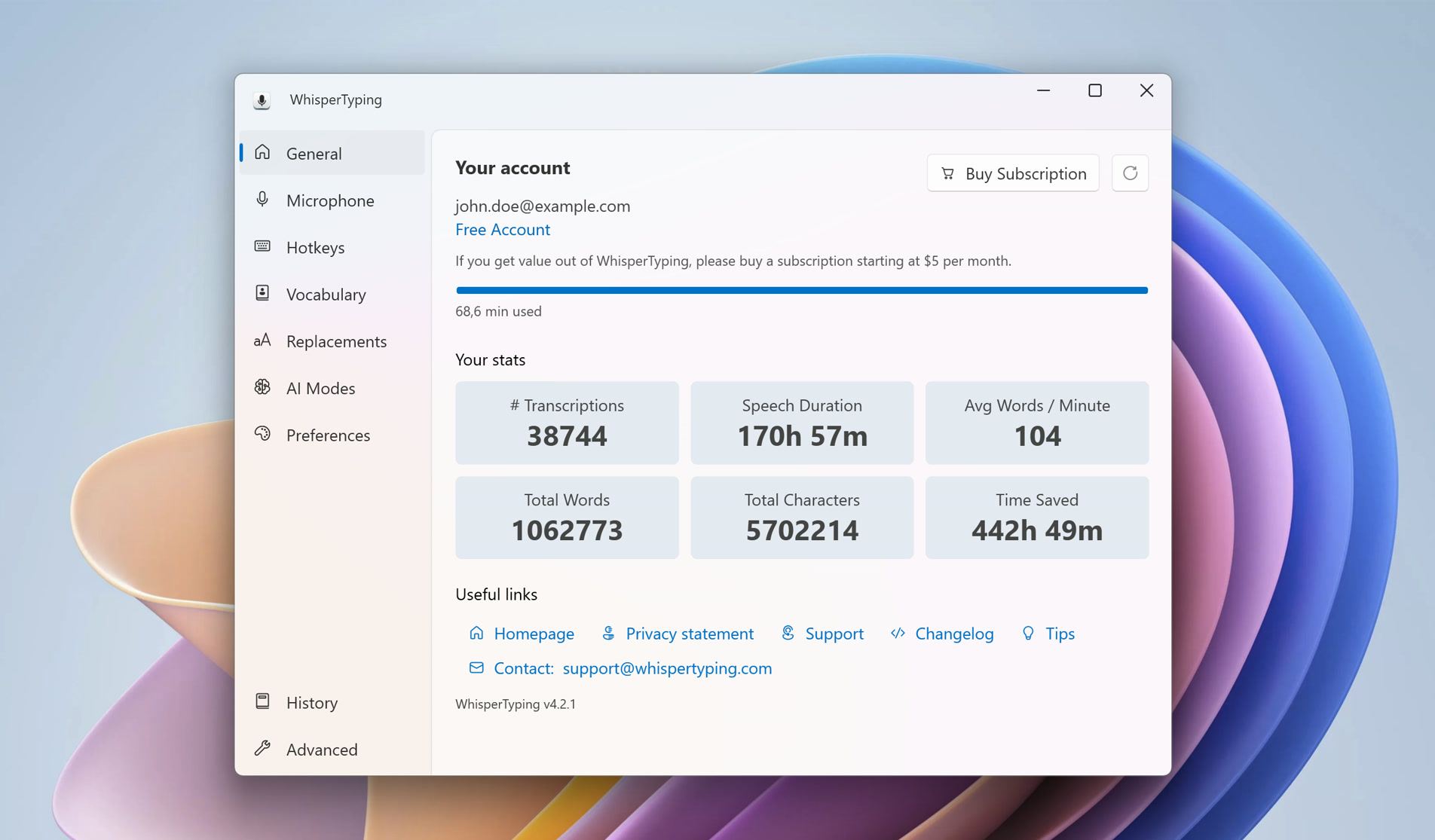
View your account information, subscription status, and usage statistics.
Account
View your email, subscription tier, and usage allowance
Statistics
Track transcription count, speech duration, words per minute, and time saved
Useful links
Quick access to homepage, privacy policy, support, changelog, and contact
Microphone
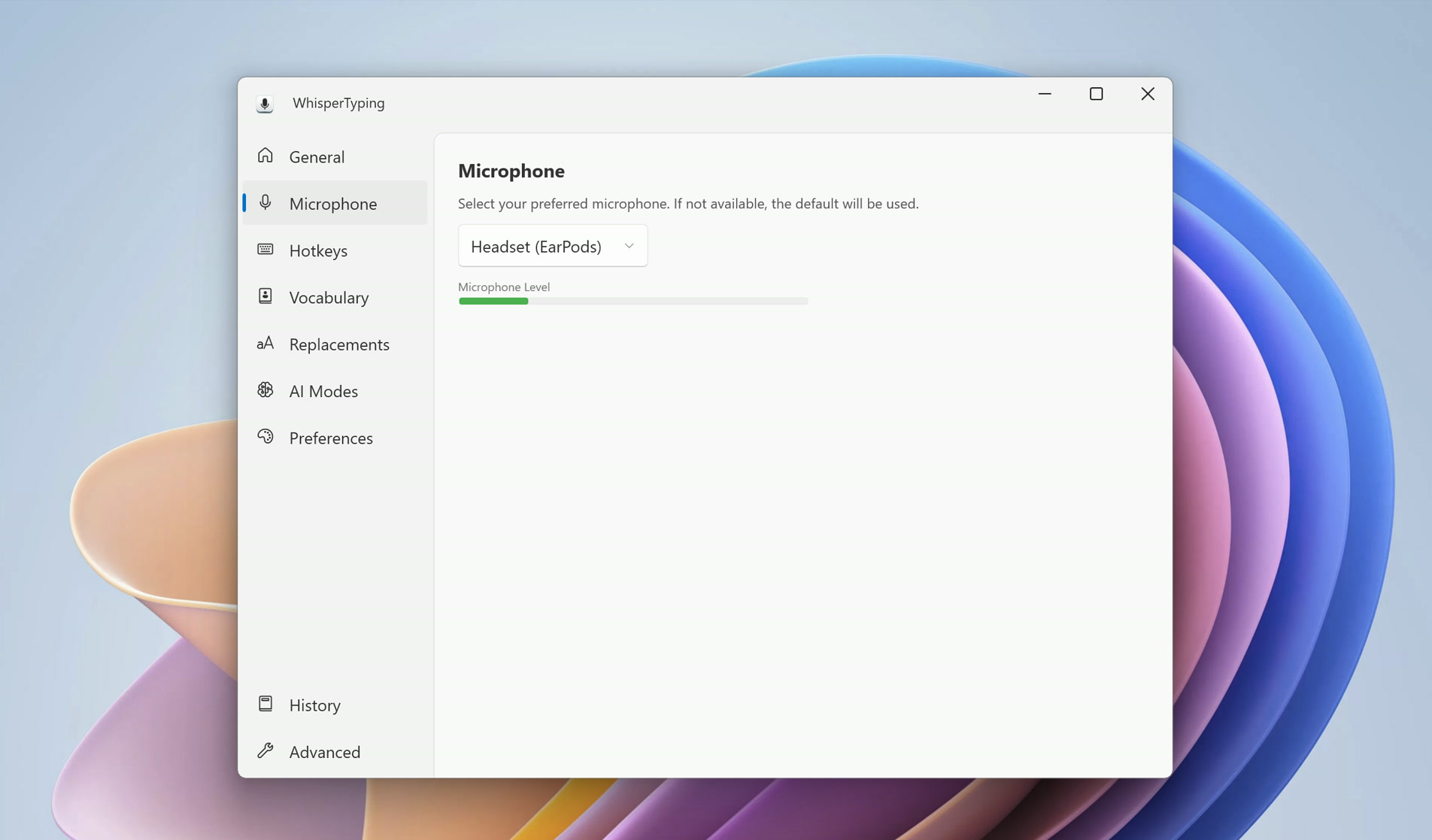
Select and monitor your microphone input.
Microphone selection
Choose which microphone to use for recording
Level indicator
Real-time visual feedback showing your microphone input level
Hotkeys
Configure how you activate voice recording.
Recording hotkey
Set the key to toggle recording on/off (default: CapsLock)
Alternative activation with modifier keys
Hold-to-record using modifier combinations like Ctrl+Shift, Ctrl+Alt, etc.
Mouse wheel button activation
Use middle mouse button to toggle recording. Learn more about mouse activation
Escape to cancel
Press Escape during recording to cancel without transcribing
Re-paste hotkey
Shortcut to paste the last transcription again (Ctrl+Alt+V)

Vocabulary
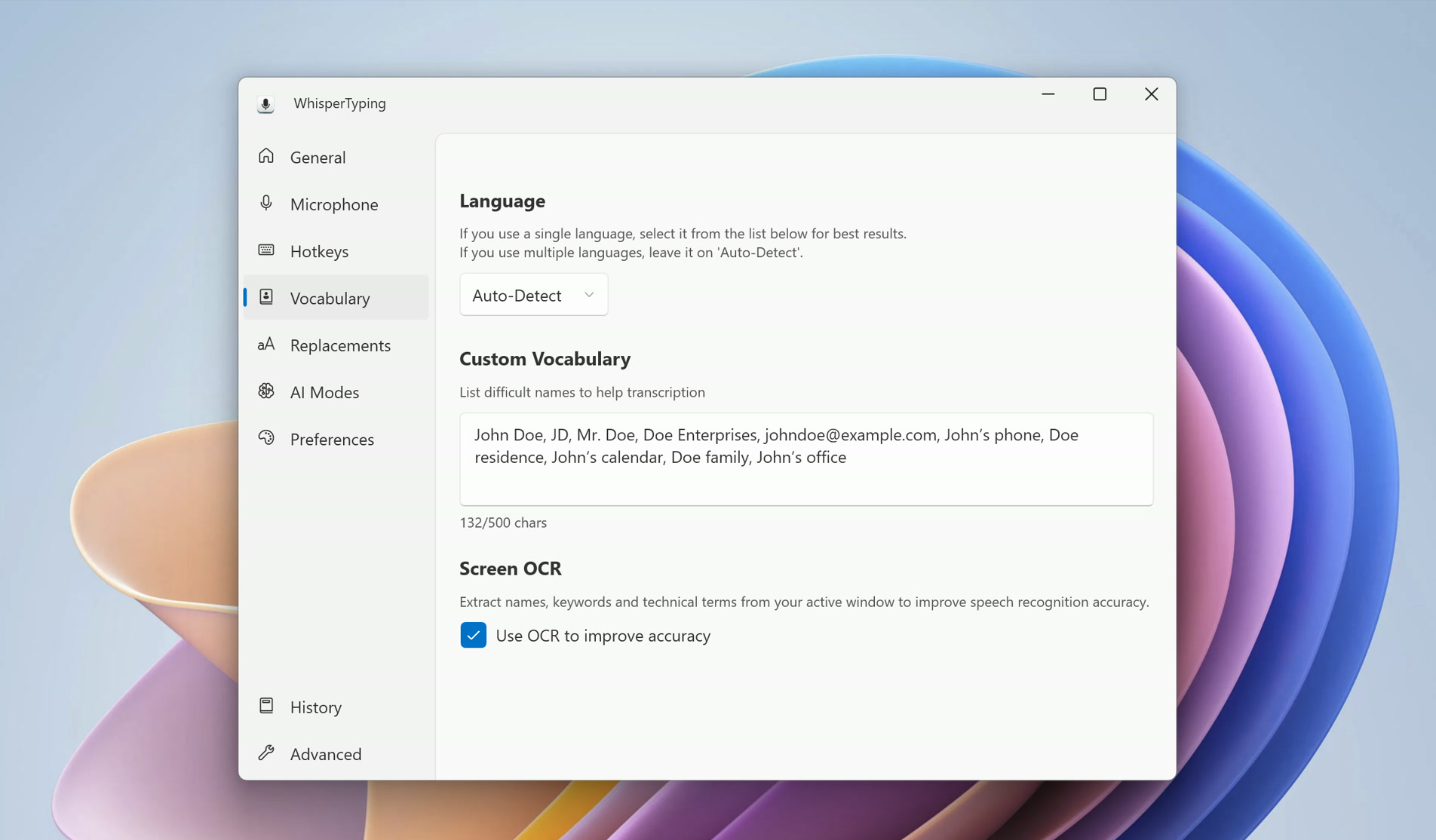
Customize language and transcription settings for better accuracy.
Language
Select from 60+ languages or use auto-detect
Transcription model
Choose transcription engine (Professional and Medical tiers only)
Custom vocabulary
Add names, technical terms, and context to improve accuracy
Screen OCR
Automatically detect text on screen to improve transcription context
Replacements
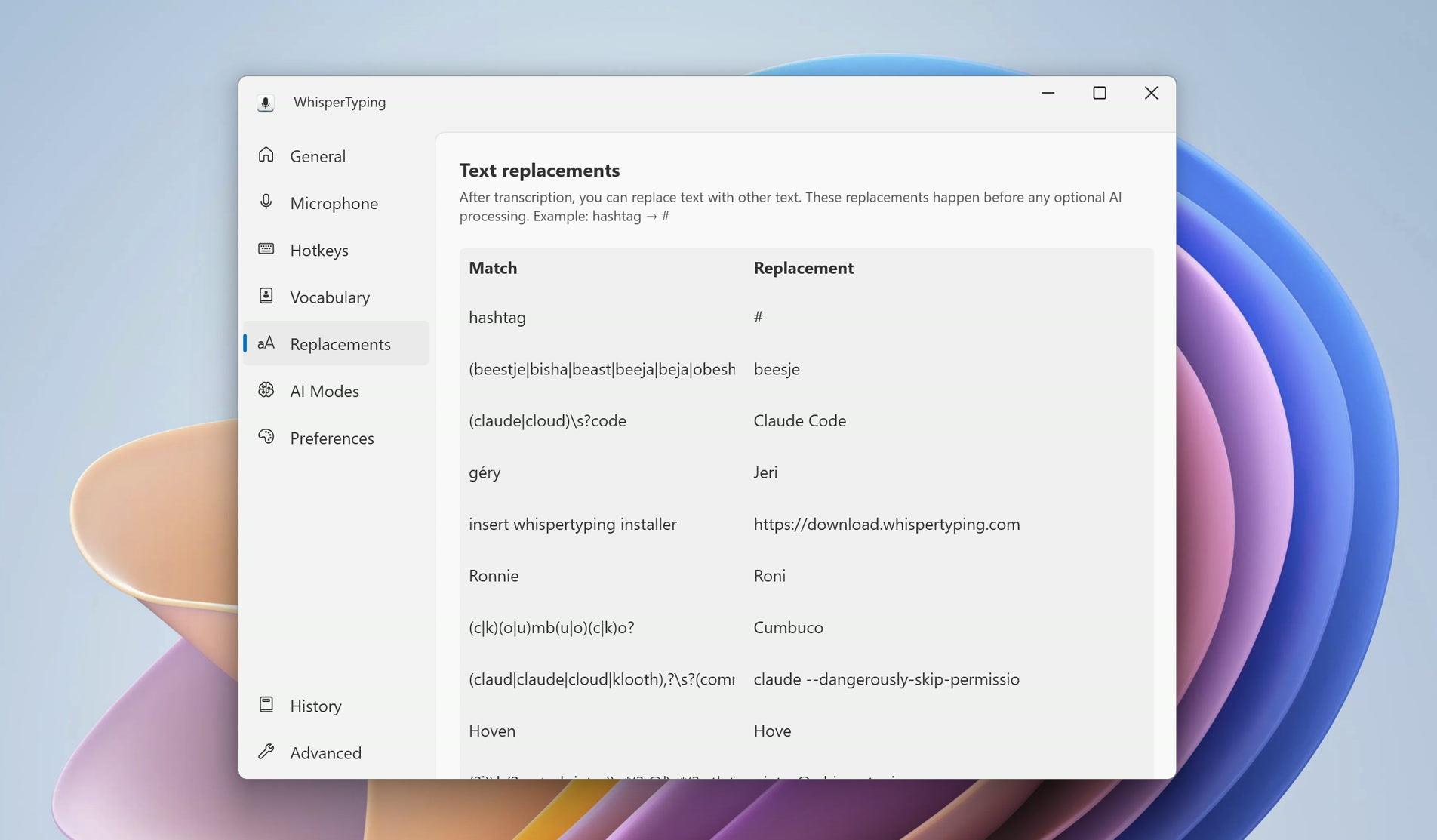
Automatically transform transcribed text using find-and-replace rules.
Custom replacements
Create rules to replace words or phrases (e.g., "hashtag" to "#")
Match scope
Match anywhere, whole words only, at start, or at end of text
Case preservation
Maintain original capitalization in replacements
Include variants
Match words with separators (e.g., "hashtag" matches "hash-tag")
Regex support
Use regular expressions for advanced pattern matching
AI Modes
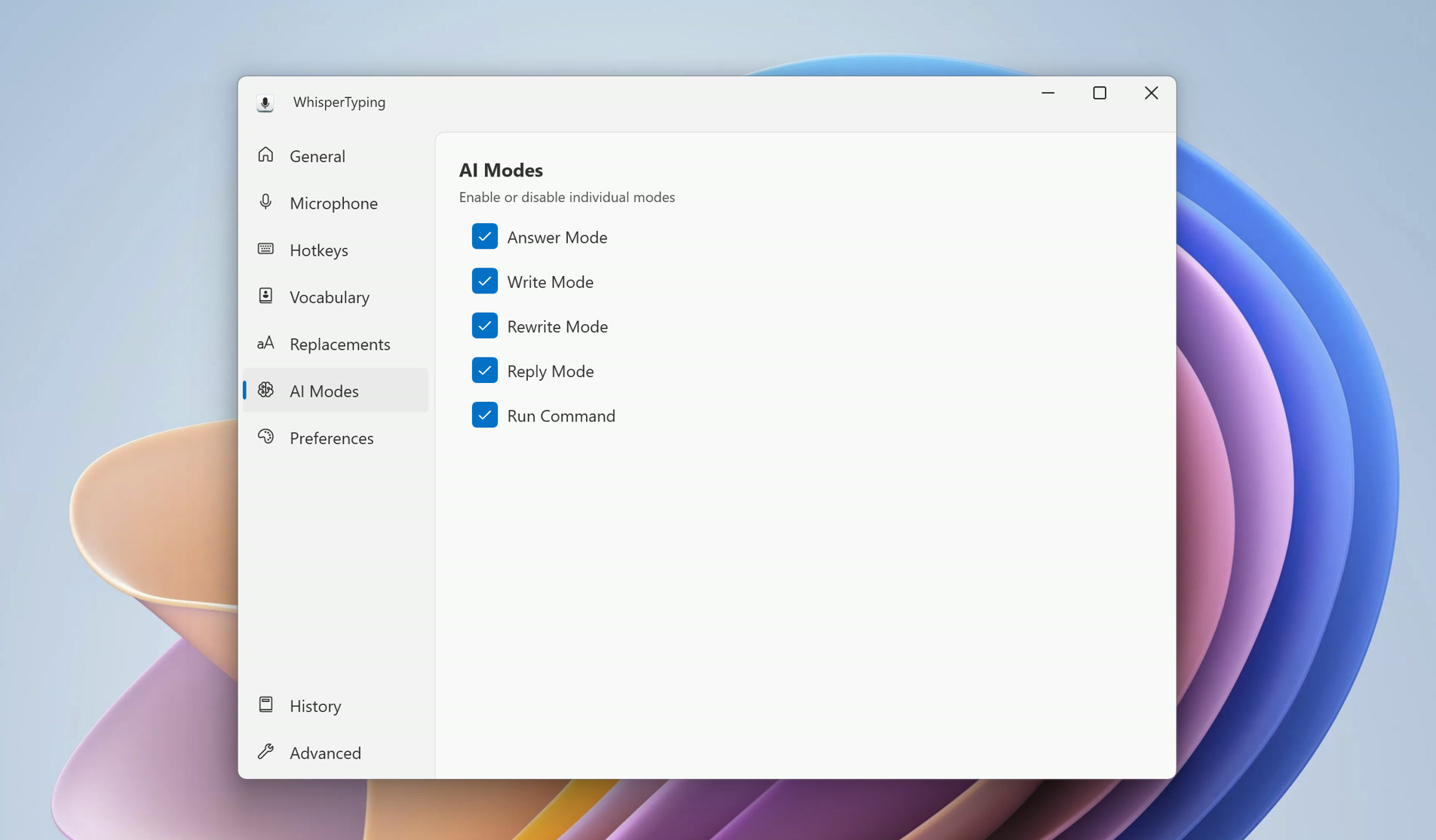
Configure AI-powered text enhancement features.
Post-processor
AI enhancement applied to all transcriptions
Assistant modes
Enable/disable Write, Rewrite, Answer, Reply, and Run Command modes
Custom assistants
Create your own AI-powered voice commands
Preferences
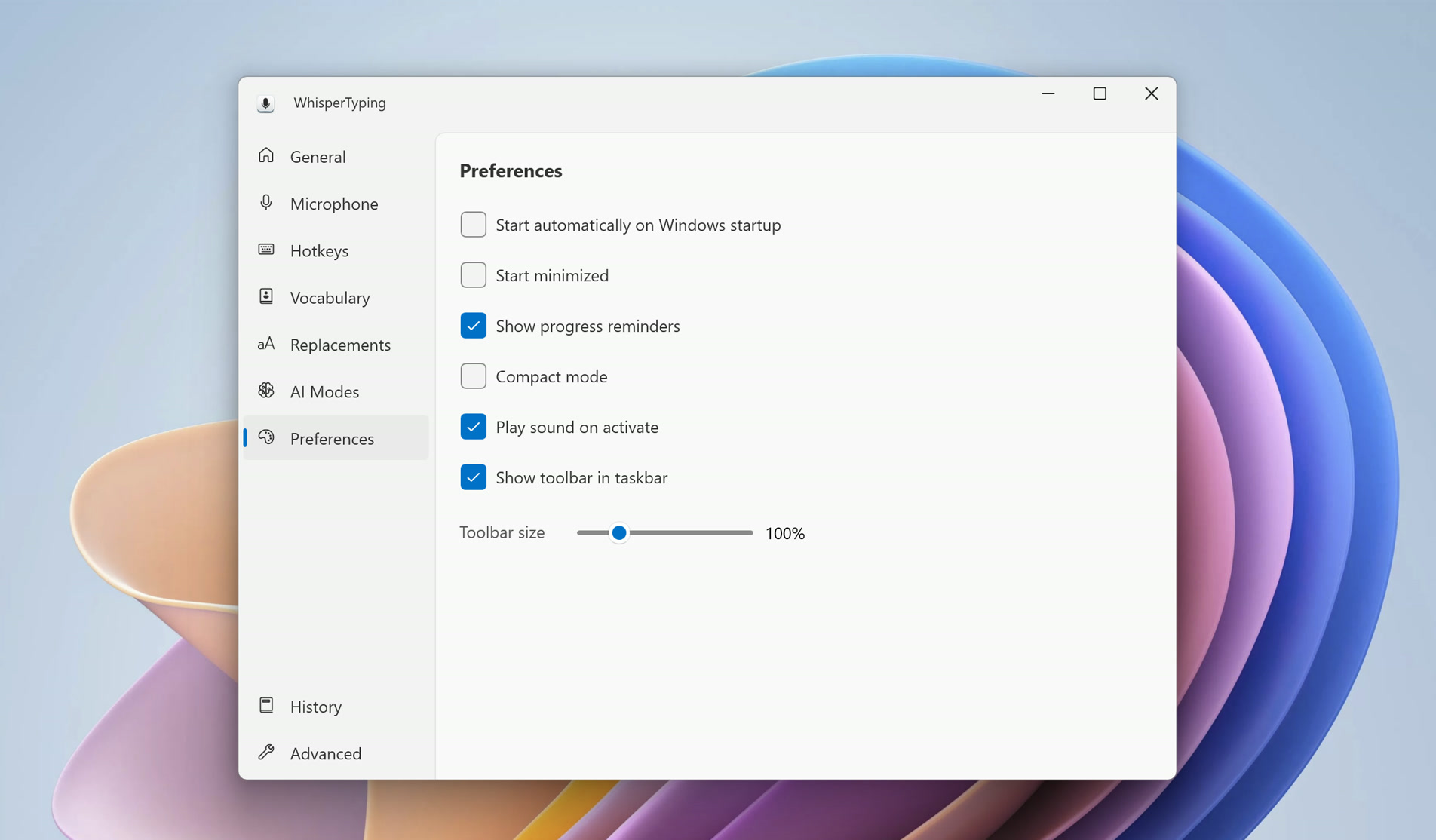
Customize the look and behavior of WhisperTyping.
Run on startup
Automatically launch WhisperTyping when Windows starts
Start minimized
Start WhisperTyping hidden in the system tray
Show progress reminders
Display engagement and usage reminders
Compact mode
Minimalist interface for less screen space
Play sound on activate
Audio feedback when starting/stopping recording
Show toolbar in taskbar
Display WhisperTyping in the Windows taskbar
Toolbar size
Adjust the size of the WhisperTyping toolbar (25-400%)
History
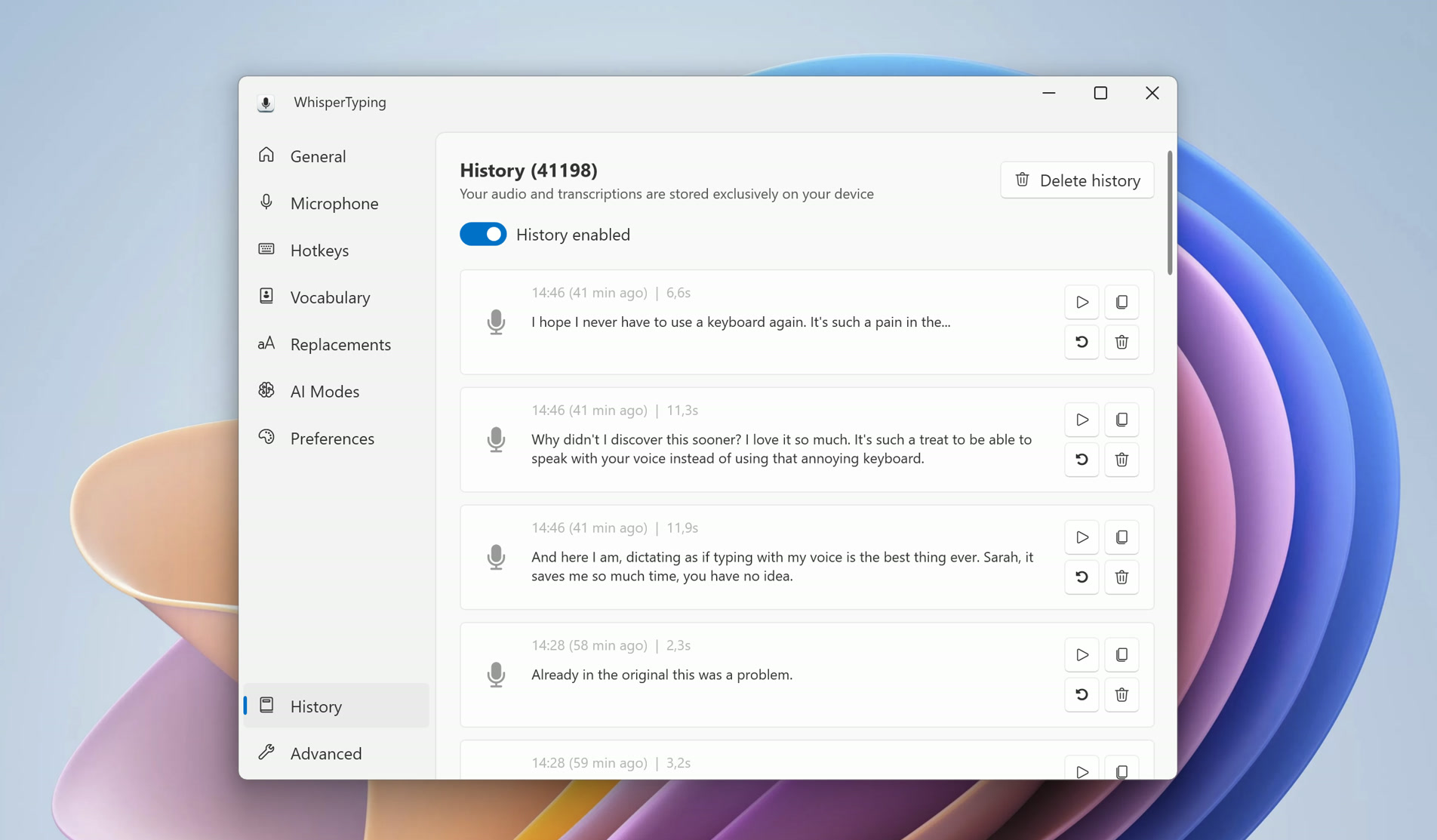
View and manage your transcription history.
Enable history
Toggle transcription history on or off
Past transcriptions
Browse, copy, replay audio, or retry previous transcriptions
Delete history
Clear all stored transcription history
Advanced
Fine-tune transcription behavior and enable experimental features.
Double-tap to send Enter
In toggle mode, double-tap your hotkey to stop recording and automatically press Enter after the transcription—useful for sending messages in chat apps like ChatGPT without extra keystrokes
Auto-spacing
Automatically adds a space before new transcriptions when you continue dictating without clicking elsewhere or pressing other keys. Works best when speaking in complete sentences. If you click somewhere else or use another hotkey, the space won't be added since WhisperTyping can't know if a space is needed there
Convert spoken punctuation
Converts spoken punctuation words into their symbols. For example, saying "full stop" inserts ".", "comma" inserts ",", "question mark" inserts "?". See the full list of spoken punctuation commands
Convert emoji
Converts spoken emoji descriptions to actual emoji characters. Say "emoji smile" or "smiley face emoji" to insert a smile, "emoji thumbs up" for thumbs up, "emoji heart" for a heart, and many more. Works with common emoji names and descriptions
No punctuation for short segments
Skips adding ending punctuation for very brief transcriptions (a few words). Useful when dictating short phrases, single words, or commands where a trailing period would be unwanted
Media playback during recording
Automatically reduces or mutes music, videos, and other system audio while you're recording. Audio returns to normal volume after transcription completes
Enroll in Beta
Get early access to new features before they're released to everyone. Beta features may be less stable but let you try the latest improvements first
Need help with settings?
Have questions about configuring WhisperTyping? Send us a message.