Vocabulary
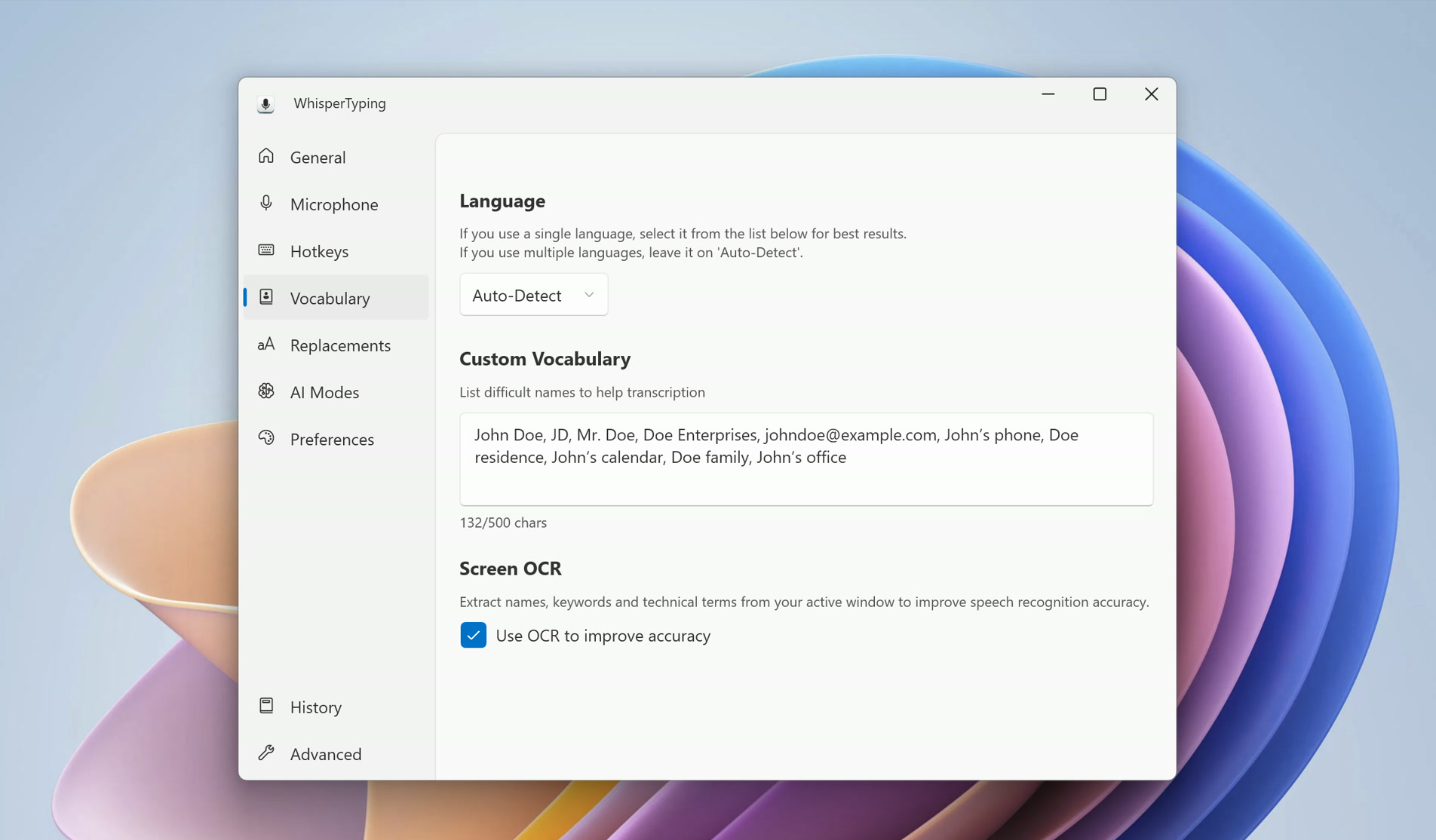
WhisperTyping's transcription engine uses context to resolve ambiguity. By giving it the right context, you can dramatically improve accuracy for your specific use case. This page covers three ways to do that: setting your output language, adding custom vocabulary, and using Screen OCR.
Output Language
By default, WhisperTyping auto-detects your language. This works well if you switch between languages, but if you mainly dictate in one language, setting a fixed output language is one of the easiest ways to improve accuracy.
When the language is set explicitly, the transcription engine doesn't have to guess, which means fewer misrecognitions, especially for words that sound similar across languages.
To set your language: open Settings → Vocabulary → Language, and select your language from the dropdown.
Custom Vocabulary
Custom vocabulary lets you add words and phrases that the transcription engine might not know, like names, technical terms, abbreviations, or product names. When WhisperTyping sees these in your vocabulary, it becomes much better at recognizing them.
What to add
- People's names that you mention frequently
- Company and brand names specific to your work
- Technical terms from your field (legal, engineering, etc.). Medical terms?
- Abbreviations and acronyms you use regularly
- Product names or project names
Tips for better results
- Add context alongside names when possible. For example, instead of just "Sarah", write "Sarah Johnson, project manager at Acme Corp". The extra context helps the engine understand when you're referring to that name.
- Keep your vocabulary relevant. A focused list of terms you actually use works better than a massive list of everything you can think of.
To add vocabulary: open Settings → Vocabulary → Custom vocabulary.
Screen OCR
Screen OCR reads the text that's visible in your active window and feeds it to the transcription engine as context. This means WhisperTyping automatically knows what you're looking at, which helps it understand your dictation better.
For example, if you're replying to an email from someone named "Wojciech Brzęczyszczykiewicz", Screen OCR picks up that name from the email on your screen. When you then dictate your reply and mention their name, the engine gets it right, even without adding it to your custom vocabulary.
When Screen OCR shines
- Replying to emails or messages where names and context are on screen
- Working with documents that contain specialized terminology
- Coding or technical work where variable names and terms are visible
- Any situation where the topic of your dictation matches what's on your screen
To enable it: open Settings → Vocabulary → Screen OCR, and toggle it on.
Privacy note: Screen OCR processing happens on your local machine. Only keywords are sent for analysis, never full sentences.
Questions about vocabulary settings?
Need help setting up custom vocabulary or Screen OCR? Send us a message.